Have you ever used USBS in clubs and experienced problems? Or perhaps you haven't used club gear yet but you're open to it but not 100% sure how it works or maybe you've already jumped on club gear only to find the gear is not reading your USB properly and every time you load a track you can't see the waveform or BPM? IN this video I will give you 5 steps to USB success to assure that when you hit the decks you can load your playlists with effortless ease and use the screens on the CDJS in the exact same way you'd use your computer when connected to a controller. So let's do it.
# 1 use RB to prepare music first
Ok the first thing to note is if you are playing in clubs and they have equipment there the chances are it's Pioneer gear and all pioneer gear in clubs read USB sticks. But this is where loads of people go wrong, they think, oh cool, club gear reads USB so they just drag music directly onto a USB and turn up, but then when they load the USB, sure they can see their tracks, but they are in no particular order, and every time they load a track it takes time for the waveform and BPM to load and this can be really painful.
So the first step to USB success is to to pre prepare your music using RB. I have a RB walk through video in my free mini course so I'll link that in the descriptiopn below, but in short you drag your music into RB, RB analyses your tracks for the waveform, BPM and keys and then once tracks are analysed and ideally sorted into a playlist you can drag the playlist onto a USB stick and you're good to go.
#2 put tracks in order
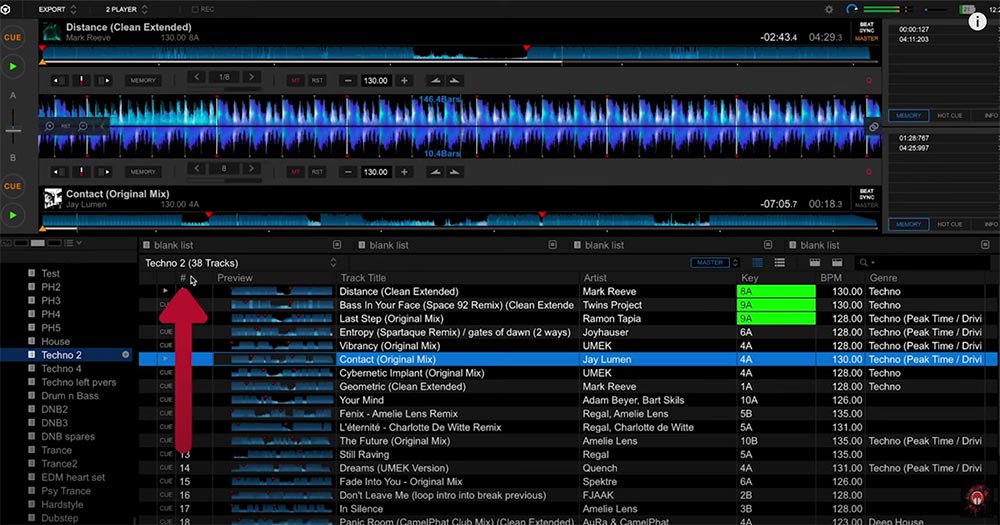
Before I dive a little deeper into USB settings, one quick question, do you want to just drag playlists onto your USB or do you want to order the playlists first and find tracks that go well together and even craft a pre planned play list. I guess one advantage of having a preplanned playlist is you have something to revert to if the going gets tough and in truth the more prepared you are the more confident you may feel, so if you decide you do want to pre plan a playlist and find tracks that go well together I would go to RB export mode, then 2 player mode and in here I would find tracks that go well together and then place my tracks in a particular order by first selecting the number column and then dragging tracks into the position I would like to play them.
#3 drag playlists onto your USB
Once you have your playlists sorted then it's just a matter of dragging the playlists relevant to the event you are playing onto the USB and waiting for them to finish loading. If I was playing an event I would probably have a playlist made especially for that event but I may also drag across genre specific playlists that I feel could be relevant as it's always good to be over prepared.
#4 USB settings
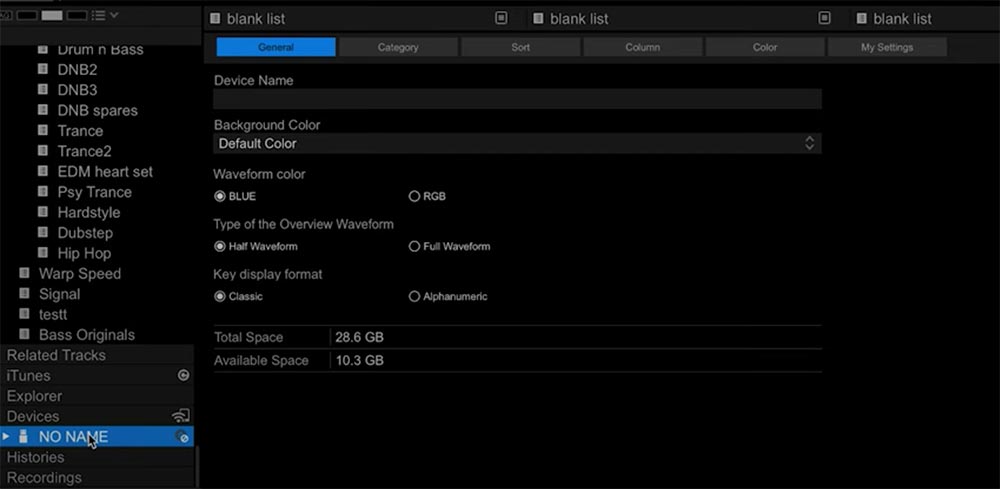
Now let's look at your USB settings. To do this click on your USB in the tree view and inside here you can decide how you want to sort and even preview your tracks. For instance let's say you have analysed your tracks for key using mixed in key and your keys are in the comments section you may want to sort by key when using USBS, in which case I would go to sort and select comments and move it over into the active sort options.
The other thing you may want to change is the column. For instance I personally like putting the keys next to the track name and to do this I can select column and then key or comments depending on which field your keys are stored on your computer. However if I was playing an open format event where the BPMS are all over the place, I may even decide to put the BPMS next to the track name, it's 100% your call.
#5 navigating the USB on club gear
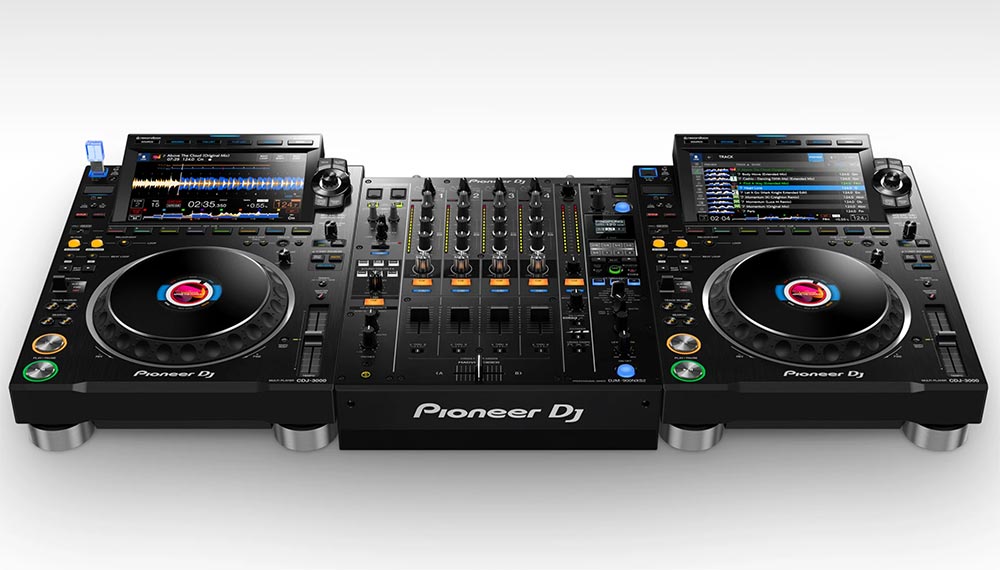
Now that we have loaded our playlists and updated our USB settings, we can safely eject the USB and then simply insert the USB into the CDJS. Most of the time there will be a link cable at the back that connects one CDJ to the other and this means you can load the USB onto one player and link the other player so you read the music off one USB stick, but when playing in clubs I always turn up with a duplicate USB just in case the link cable isn't working. As for what USBs to use, I did a video all about this but long story short I would avoid USB 3.1's and have always used and never had any issues with the sandisk ultra's 3.0.
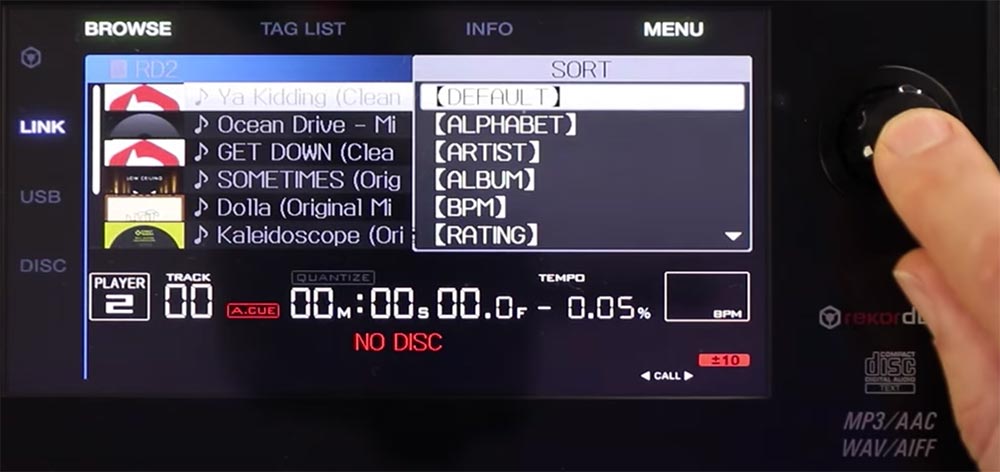
Then once I have loaded the USB I can search by artist, album, track and playlist and once I have found the playlist I wish to play from I can then go to the menu option and sort by default which is the order you put the tracks in in RB, or you can sort tracks alphabetically or by BPM and also comments as we added that as a sort option before.
Then once you load the track it looks very similar to how it looks when you load a track using your computer, in the sense you can see the mini and big waveforms and the BPM, I guess the biggest difference is you have one screen per player so you are unable to stack the waveforms visually and some club gear may not have sync meaning you'll 100% want to know how to beat match by ear, I also have a video on that in my free mini course in the description below.
All in all none of this is very difficult and you'll find the transition from controller to club is nowhere near as hard as you may imagine as IMO all DJ gear shares the same basic operations, I guess the main thing is some of the layout may be slightly different, but I promise you, you'll quickly adjust, but let's say you have a club show coming up and you're really nervous about it, I would ask the promoter if you can go in a little early, before the doors open and quickly check that the USB works as the last thing you want to do is turn up 5 minutes before your set only to find out you haven't loaded your music or playlists correctly or perhaps you only bought one USB but there link isn't working, so remember if you don't prepare, prepare to fail. Anyway, hope you found that helpful and please comment below any USB horror stories you may have had or any advice you have for beginner DJs playing their first set. Thanks again for tuning in, see you next Monday.
Related Posts
Most DJs don't fail because they're not talented. They fail because they set a goal so big it overwhelms them, or they set no goal at all, and then they spend years quietly burning out, telling themselves it just wasn't meant to be.
Ever found yourself endlessly dreaming about DJ success but struggling to take real action? You're not alone.
The first key to marketing is to ignore everything everyone has ever told you. don't you know marketing is not cool and the fact is if you're telling people to follow you...
YOUR FIRST DJ GIG! MAKE IT COUNT! If you have a gig coming up or want to know what's involved when playing live this article is Gold.