Rekordbox 7 has landed and the internet has feelings. Some people love it, others are tearing their hair out. In this guide I'll show you what's new, what's great, what's not there yet, and how to actually use the software to prepare a set from scratch. If you're brand new to Rekordbox or you just want a clean walkthrough of the new features that matter, you're in the right place.
We'll cover export vs performance mode, the new dual players, intelligent cue creation, discovery tools like Collection Radar and Streaming Radar, how to manage your library the right way, and how to export to USB for clubs and standalones. I'll also explain the differences between free and paid plans so you can decide what's worth it for you.
The elephant in the room: what's frustrating in RB7
Let's start with the truth: most of the early complaints are about performance mode. Performance mode is when your controller is plugged into the computer and you're DJing live through Rekordbox. Some users report freezes when loading tracks, audio hiccups and stems not keeping up with the competition. Others, doing the same things on similar machines, aren't having issues at all.
What that tells me:
- There are still some first-release bugs to iron out
- Some systems may need OS, driver or firmware updates to play nice with the new engine
If you're happily gigging on Rekordbox 6 with a controller, you might wait a few months before upgrading. Let Pioneer push a couple more updates, then jump.
If you mostly prep on a laptop and play from USB on club or standalone gear, upgrade now. Export mode is where RB7 really shines.
Stems: not the headline, yet
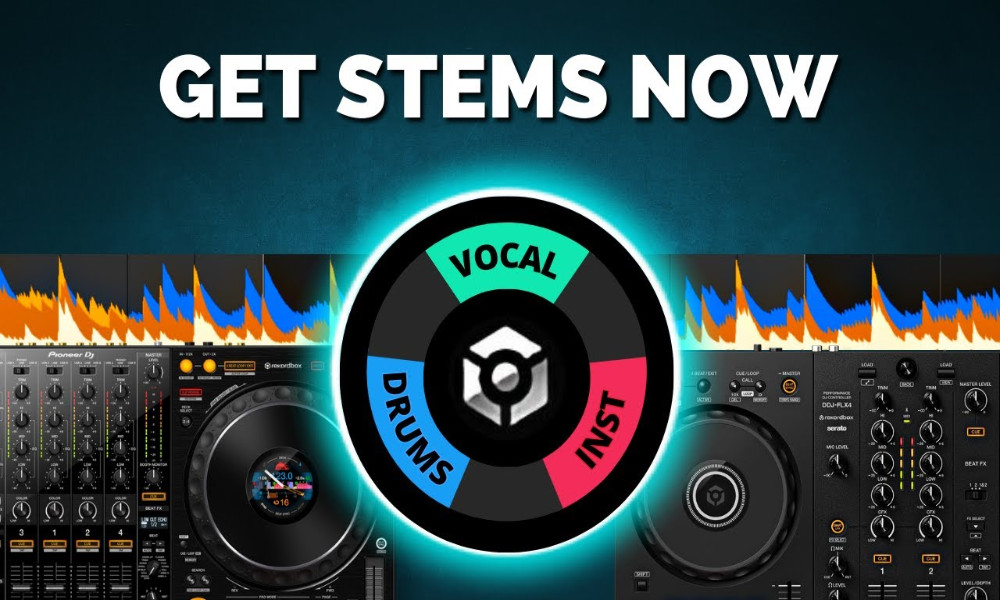
If stems are your main thing and you live inside Virtual DJ or Serato for stem tricks, RB7 won't convert you today. Pioneer is talking about big under-the-hood improvements to analysis and processing speed and I suspect this groundwork is aimed at stems becoming better down the line. For now, treat stems as a bonus, not the star.
What's genuinely great in RB7
Three features change real-world set prep:
- Dual players in Export Mode: You can audition transitions, lock two tracks together, and jump forward in musical chunks to hear how your handover will feel 16 bars from now. This alone speeds up playlist crafting in a way that used to require your decks on the desk.
- Intelligent cue creation: Rekordbox can learn how you like to place cue points and then set them for you on analysis. You can teach it with a reference playlist and let it auto-map hot cues or memory cues. Some cues will still need tweaks, but the head start is real.
- Discovery tools: Collection Radar surfaces compatible tracks you already own. Streaming Radar suggests matches from services you're subscribed to. Both use a mix of key, BPM, energy, vocals and popularity. It's like having a smart friend sit beside you and say try this next.
Free vs paid plans: what do you actually get
If you're new, grab the free version or start the 30-day trial. Build momentum first, then decide if any paid feature is essential for your workflow.
What I personally watch for:
- Intelligent cue creation lives behind a paid plan after the trial. If you value your time, paying a small monthly fee to have cues pre-laid can be worth it. You can always cue your entire library during the trial, then reassess.
- Creative plan adds vocal detection on waveforms and basic edit tools for extending intros or trimming dead space. Handy for set prep, not critical for everyone.
- Higher streaming tiers unlock offline lockers so streamed tracks load instantly and work without internet during sets.
Rule of thumb: start free, keep only what you genuinely miss after the trial expires.
Export mode vs performance mode
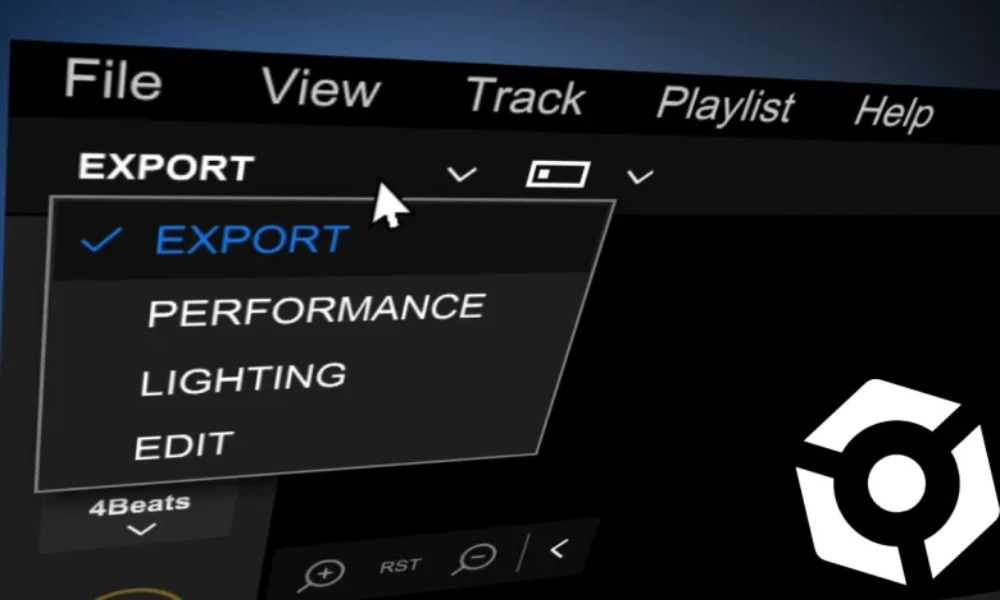
Two ways to use RB7:
- Export mode: this is your prep room. Organise your music, set cues, test transitions in dual players, build and order playlists, and export to USB for club or standalone gear. You don't need your controller attached to do any of this.
- Performance mode: this is your live brain when you plug a controller into the laptop. If you're all-in on live laptop DJing, performance mode matters. If you're a USB DJ, you may never open it.
For this guide we'll start in export mode because that's where most of the new value is.
Step 1: set up your library the right way
Rekordbox doesn't copy your files when you drag them in. It references them from wherever they live. If you import from Downloads then move the files later, you'll get file not found. Fixable, but avoid the mess.
Do this:
- Choose a central music folder you control. It could be a Dropbox folder marked for offline use, an external drive, a desktop Music folder or iTunes. The key is consistency.
- When you buy or download new tracks, move them into that central folder first, then drag them into Rekordbox and sort into playlists from there. Rekordbox will reference the stable location.
Step 2: build playlists and folders without clutter
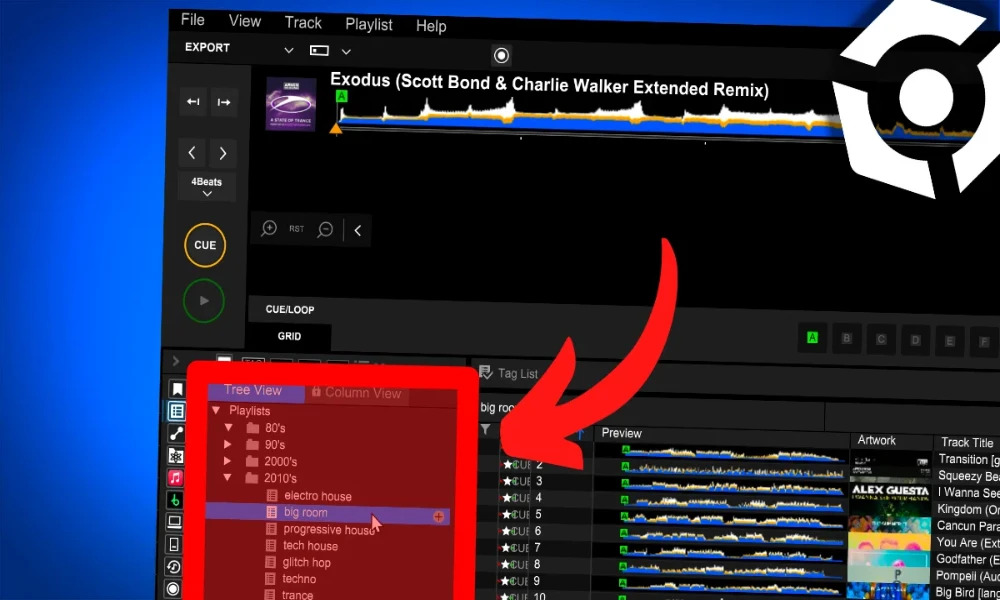
RB7 adds a cleaner sidebar with media icons and an excellent two-pane view for playlists: Tree View and Column View. They work together.
- Use folders to group playlists by theme: genres, events, practice sets.
- In Column View you can multi-select a bunch of playlists and drag them into a folder in one shot. In Tree View you can collapse folders to keep things tidy.
- Pro tip: set up smart playlists by genre or tag once, then let analysis rules auto-file new tracks.
Create your first playlist, for example New Music May 2024. Drag fresh tracks from your central music folder into it. You can place the same track in as many RB playlists as you like without duplicating the file on disk.
Step 3: cues that make mixing easier
There are two types of cues:
- Memory cues to mark structure and transition options
- Hot cues to jump in real time for performance or to skip dull sections
A simple, reliable approach for beginners:
- Memory cue 16 bars before key events: breakdowns, build-ups, drops, outros. That gives you time to beatmatch and execute.
- Hot cues on the first beat, start of breakdown, start of build, first vocal, first beat of drop. Color them consistently so your eyes know what's what.
Keyboard shortcuts help: C sets the temporary cue, M commits a memory cue. The top mini-waveform shows the whole track at a glance so you can hunt for structural changes. The multicolor waveform gives you a visual feel for bass, mids and highs, which helps you pinpoint a creative mix-out even if it isn't a formal outro.
Intelligent cues: teach the robot once, then let it help
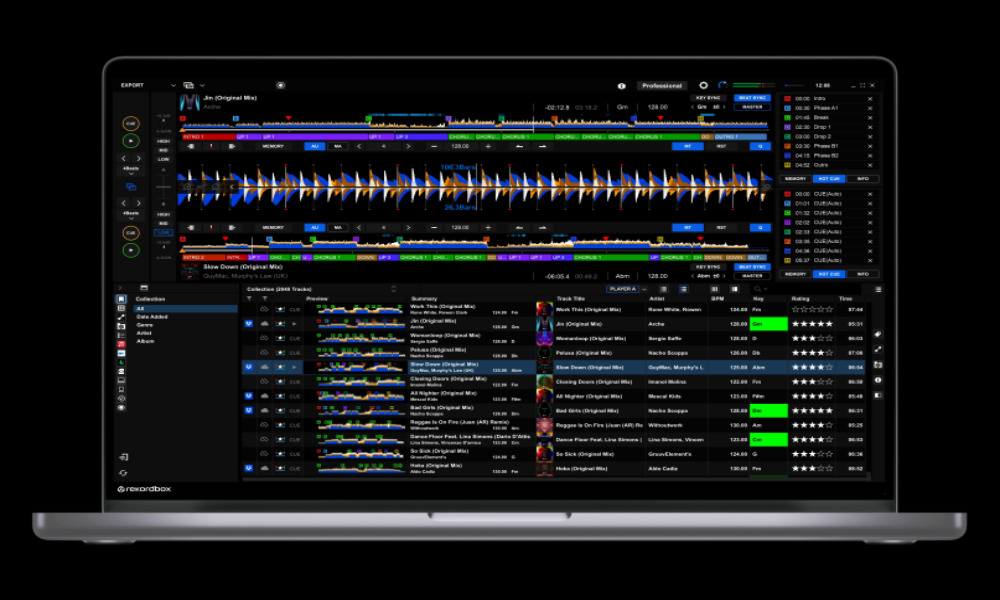
Head to the Cue Analysis Playlist at the top of the playlists panel. Add a dozen tracks where you've placed your cues the way you like them. Keep the pattern simple and consistent.
Go to Preferences → Analysis → Cue Analysis. Turn on Set Cues During Analysis and choose whether you want hot cues or memory cues, how many of each, and whether to add an Auto Cue comment so you can tell them apart from your hand-placed cues. Also enable the option to avoid overwriting existing cues.
Now when you analyze new tracks, RB7 will try to map cues in your style. It won't be perfect, but it's a solid jumping-off point. I leave it on for new music, then tweak anything that needs it as I audition transitions.
Step 4: use Dual Players to design your set
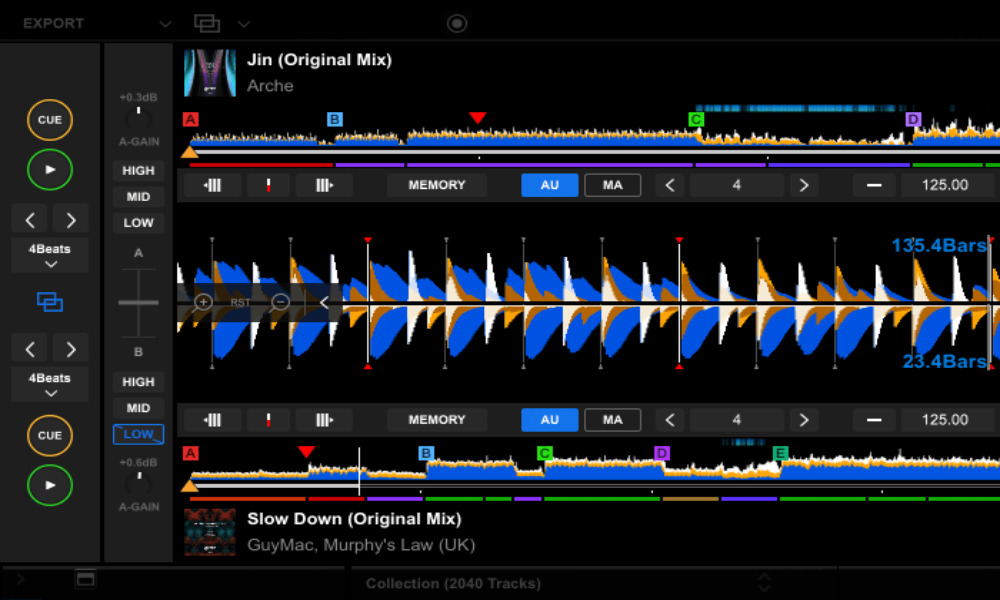
This is the sleeper feature. In Export Mode, choose Dual Player. Load two tracks, lock them, and jump forward together by phrases to preview how the transition will land in 8 or 16 bars. Adjust your memory cues on the fly if the handover is late or early. You can crossfade, cut lows or mids, loop a bar to buy time, then jump forward again to sanity-check the next moment.
Why this matters: you can craft a flow and set order without your decks plugged in. You'll land at the gig with a tested path through your playlist, not a pile of guesses.
Once a blend works, reorder the playlist so Track A flows into Track B. If you can't drag tracks, click the column header Number to enable manual ordering, then move tracks where you want them.
Step 5: find the next right track with Radar
RB7 has two discovery helpers.
Collection Radar
This looks only at the music you already own. It suggests compatible tracks based on BPM, key, energy, popularity and whether you want vocals or instrumental. There's one setup step: re-analyze your collection so RB7 has the data it needs. If you like Intelligent Cues, you can batch analyze once and get both jobs done.
You can tell Collection Radar whether to match the master deck, deck A or deck B. It even shows the track name it's basing the suggestions on to avoid confusion. When you find a match you like, drag it straight into your playlist. RB7's new horizontal sub-browser makes that drag-and-drop feel natural.
Streaming Radar
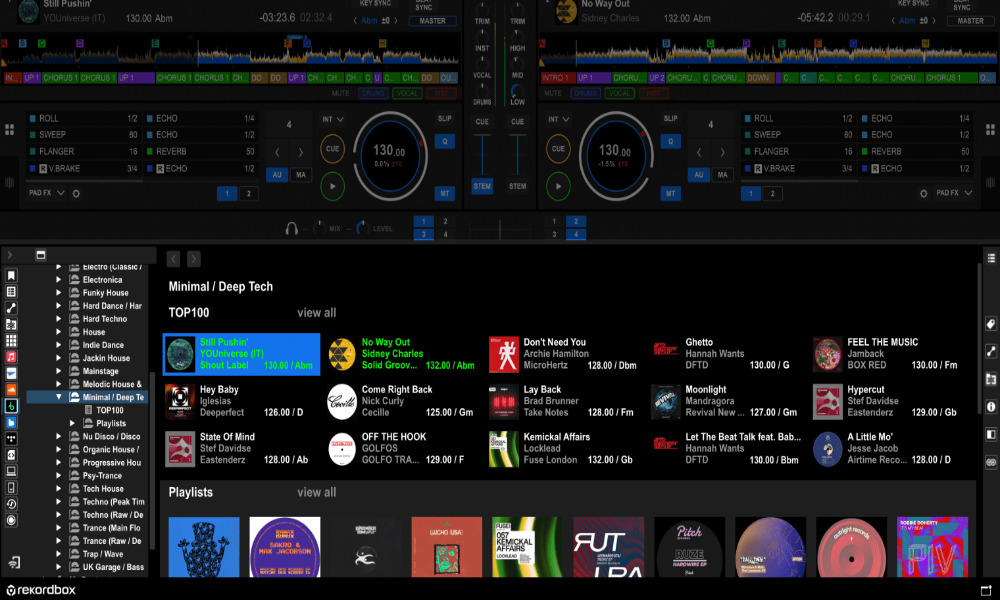
If you're logged into streaming services, this suggests tracks from those catalogs using a similar logic, with more popular suggestions toward the top and more underground choices as you scroll. You can load a suggestion, auto-cue will pre-seed the markers, and you can audition the transition in Dual Players. If it fits, drag it into your playlist. RB will remember your cues on streamed tracks the next time you load them, as long as you're online and subscribed.
Limitations to remember:
- You can't export streamed tracks to USB for club gear
- You can't use the software's internal recorder to record streams
- To avoid buffering live, use a plan that includes an offline locker so frequently used streamed tracks load instantly and work without internet
Step 6: export to USB the right way
When your playlist feels good:
- Plug in your USB. In Devices, select your drive.
- Right-click the playlist and choose Export Playlist to [Your USB Name].
- Wait for the progress bar to finish. Don't pull the drive early.
- Eject from within RB7, then remove it.
Bonus tip: after a set, plug your USB back into RB7. Your play history will sync in. Right-click that history, turn it into a playlist, rename it something useful and keep a folder of past sets. When a gig wants a different vibe and you remember a night that fit perfectly, those past histories can save you.
Step 7: when to switch to Performance Mode
If you own a controller and want to perform through the laptop, hop into Performance Mode. Hide UI you don't need. If your hardware already shows a mixer and FX, collapse those panels on screen to reduce clutter. If you want stems, enable them in Settings → Extensions.
Performance Mode is where early RB7 complaints tend to live, so if your controller gig is tomorrow and RB6 is rock-solid for you, wait. If you're prepping for USB, you can live entirely in Export Mode.
Streaming services: useful, with caveats
Streaming is fantastic for discovery because you search and audition inside Rekordbox. Beatport's integration in RB7 looks clean and gives you genre Top 100s and curated lists. BeatSource is brilliant for parties and functions because it has a deep catalog of sing-along classics you won't find in modern dance stores. Tidal and SoundCloud fill different niches.
Real talk on the downsides:
- Subscriptions add up
- Buffering can interrupt your flow unless you use an offline locker tier
- You can't export streams to USB or use internal recording on them
My approach: use streaming to explore, then buy the tracks you want in your permanent library so you can export to USB and play anywhere without a laptop.
Should you upgrade to Rekordbox 7 today
- USB and club DJs who prep in Export Mode: yes. Dual Players, Intelligent Cues and the discovery tools are a meaningful upgrade to set prep.
- Laptop/controller DJs who rely on Performance Mode every weekend: probably wait for another point release or two, then jump once the bug reports thin out.
- Stem-heavy performers: RB7 isn't the reason to switch yet. Keep an eye on it.
Quick FAQ
Is Intelligent Cue Creation worth paying for?
If you value time, probably. Even if you tweak half of them, starting with a map saves minutes per track which becomes hours per crate. Do your entire library during the free trial, then decide if you want to keep paying.
Can I keep cues on streamed tracks?
Yes. Rekordbox remembers your cues on streamed tracks within your playlists as long as you're online with a valid subscription.
Why didn't my USB work on older club gear?
Some older players only read certain USB specs. If a stick fails on a booth's older units, it's often the drive, not your Rekordbox export. Use a well-supported USB 3.0/3.1 stick formatted correctly and always eject cleanly.
Do I need Performance Mode if I only play CDJs or standalones?
No. You can do all prep, discovery and ordering in Export Mode and walk in with a USB that just works.
Final thoughts
I'm a Pioneer kid and RB7 has given me renewed energy for set prep. Dual Players in Export Mode is the exact workflow boost I wanted. Intelligent cues, used smartly, reduce setup time so you can spend more of your session finding combinations, ordering a journey and practicing the moments that matter. Collection Radar and Streaming Radar make discovery feel like part of prep rather than a separate chore.
If you're new to Rekordbox, start with the free version or the trial. Build a central library, make your first playlists, teach the cue engine how you like things placed, then use Dual Players to design real transitions you actually want to play. Export to USB, save your histories, and keep iterating. If a paid feature becomes mission-critical, you'll know because you'll miss it the day it disappears.
If you want a deeper, step-by-step path and personal feedback, I've helped thousands of beginners become club ready with my course. You'll learn phrasing the right way, cue mapping that accelerates your flow, transition methods that hit, and a set-building process that turns playlists into experiences. There's a full year money-back guarantee if it doesn't click for you.
Until then, fire up RB7, craft something you love, and share it. Your best sets start in Export Mode long before anyone hears a beat.
Watch the full video here: https://youtu.be/ApJ9H2TZ_oY
Related Posts
If you're anything like me, you've probably sat there scrolling endlessly through your music library wondering which two tracks might magically work together.
If you're a DJ and have a club show coming up and you're nervous about making the jump from controller to club gear and you want to be prepared for all eventualities...
Choosing the most suitable DJ gear can feel like a daunting task, with the seemingly endless options from different brands with different softwares, it can become overwhelming.
I was against the idea of streaming initially, perhaps that's the part in my that is resistant to change, but recently for the benefit of my students I dived right into it and TBH streaming has a lot of advantages...